
Save PDFs and ask questions about them
Upload a PDF to Qind and it becomes part of your library: Qind can summarize it and answers your questions about it with links back to the document, and on Basic and Pro it tags and files it for you. Word and PowerPoint files work the same way.
How it works
PDFs pile up in downloads folders, where nobody can search them.
- 1
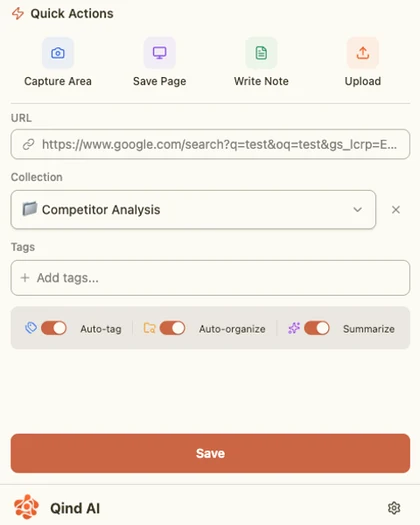
Upload a PDF in the web app, or save a file from the web clipper for Chrome, Edge or Firefox.
- 2
On Basic and Pro, Qind tags it and files it into a collection when it is sure; turn summaries on for a short summary.
- 3
Search for it by meaning, or ask a question and get an answer that links to the PDF.
Latest in your library
-
Designing Data-Intensive Applications, ch. 5
-
Replication lag and read-your-writes
-
Voice note: ideas for the Q4 talk
-
Interview questions, draft 2
-
Retry budgets: chat summary
What it is good for
- A book chapter, the papers it cites and your notes on them, in one collection you can ask.
- A contract or a report you need one clause from, found by asking.
- Slides from a talk next to the article that inspired it.
Limits worth knowing
- File size and storage depend on your plan; the pricing page lists them.
- Qind works from the text it can read in a file; a document that is only an image of text is harder to search.
- AI processing is opt-in: Qind asks before your content goes to an AI provider, and does not train models on your content.
Frequently asked questions
Which file types can I upload?
PDFs, Office files, Markdown, images, audio and video. PDFs and Word and PowerPoint files are read for search and answers.
Can I ask questions about a PDF?
Yes. Ask in plain language and Qind answers from your PDFs and other saved items, with links to the documents it used.
Can I save a PDF from the browser?
Yes. The Qind web clipper for Chrome, Edge and Firefox can save a file as well as a page or a selection.
Start with the next thing you save.
Save it, ask about it later, and open the source behind every answer.