
What Qind does with what you save
Save pages, files, notes and recordings. Qind files them, finds them by meaning and answers your questions with links back to the source.
Save from anywhere
What you want to keep turns up in tabs, downloads and voice memos.
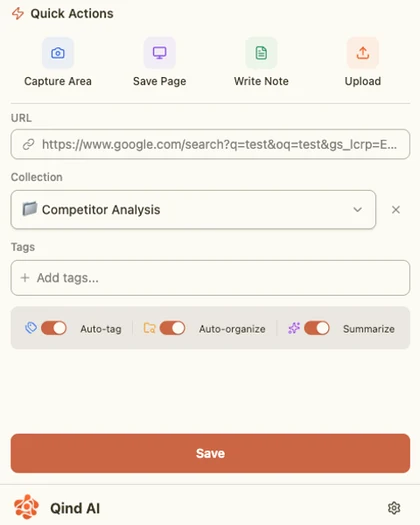
Clip a page, a selection or part of the screen with the web clipper for Chrome, Edge and Firefox. Upload PDFs, Office files, Markdown, images, audio and video. Write a note or record audio in the web app, or ask your AI assistant to save something through MCP.
Example: a book chapter as a PDF, an article from Chrome, a voice note and a note you wrote sit in one library.
Latest in your library
-
Designing Data-Intensive Applications, ch. 5
-
Replication lag and read-your-writes
-
Voice note: ideas for the Q4 talk
-
Interview questions, draft 2
-
Retry budgets: chat summary
Qind sorts what you save
Saving takes a second. Tagging and filing is the part you skip.
By default Qind tags each item and files the ones it is sure about into the right collection. When it is not sure, the item waits in Unsorted for you to place.
Summaries are optional: turn them on when you want a short summary on each item. You can change any tag, move any item and switch any of this off.
Example: “Q3 user interviews” is tagged research, interviews and q3, then filed to User research. A link with no context waits in Unsorted.
When something is saved
- On
Auto-tag
- On
Auto-file
- Off, optional
Summaries
Q3 user interviews
Filed to User research
Unsorted
-
Link with no context
-
Meeting recording, untitled
Find it by meaning
You remember what a page was about, not what it was called.
Search reads meaning and keywords together. A search for “keeping copies of data in sync” finds your notes on replication even when those words are not in the title.
Example: one query returns a PDF chapter, a note you wrote and a clipped article.
keeping copies of data in sync
-
Designing Data-Intensive Applications, ch. 5
Replication means keeping a copy of the same data on several machines. Followers apply writes in the same order as the leader.
-
Why we chose leaderless replication
Writes go to several nodes at once, and a read repairs any stale copy it finds along the way.
-
Replication lag and read-your-writes
A user who writes and then reads can see old data when the read lands on a follower that is behind.
Ask your library
A search gives you a list. Sometimes you want the answer.
Ask Qind a question and it answers from what you saved, with numbered links to the items it used. Limit a chat to one collection when you only want answers from one project.
Example: asked inside a Distributed systems collection, the answer cites a book chapter and your own note.
Asking in Distributed systems
When should I use leaderless replication?
Leaderless replication suits workloads where writes must keep succeeding while some nodes are down, and where reading slightly stale data is acceptable 1 (source 1). Your own notes picked it for the activity feed for that reason 2 (source 2).
-
Designing Data-Intensive Applications, ch. 5
-
Why we chose leaderless replication
A digest of what you saved
What you saved last month is easy to forget.
Get a digest of what you saved, by email and in the app. It arrives weekly by default, or monthly if you prefer, on every plan.
Example: a week with a PDF, an article and a voice note comes back as one short list.
Your week in Qind
-
Designing Data-Intensive Applications, ch. 5
-
Replication lag and read-your-writes
-
Voice note: ideas for the Q4 talk
Use it from your AI assistant
Your best notes are in Qind. The conversation you are having is somewhere else.
Connect Claude, ChatGPT, Cursor, VS Code, Codex or another MCP client and approve access with a sign-in. Your assistant can then ask your library a question and cite your items, search and read what you saved, create notes and bookmarks, manage tasks and reminders, and turn action items into tasks, through 35 tools.
Example: say “save this thread to Qind” and the thread becomes a note in your library.
Save this thread about retry budgets to Qind.
Called Qind: create_note
title: Retry budgets: chat summary
Saved to your library as “Retry budgets: chat summary”.
What did I save last month about idempotency?
Called Qind: search_items
query: idempotency
Two items: your notes on idempotency keys and a PDF chapter on exactly-once delivery.
Your library stays yours
Everything you read and write is personal.
- Encrypted in transit.
- Your content travels over HTTPS.
- Processed on Qind’s servers.
- Qind is not end-to-end encrypted. Your content is processed on our servers so it can be tagged, searched and used to answer you.
- No training by Qind.
- Qind does not train models on your content.
- Yours to take or delete.
- Export your library from settings. Delete your account in the app.
Your library starts with the next page you save.
Make a free account, add the web clipper and save your first item.